Turn a goal into actions, then use a weekly review to finish the work
A large goal can remain stuck between an attractive description and today’s task. The answer is not always a longer list. Define the next action, a visible completion condition and a regular opportunity to check what has actually changed.
Define what finished means
Describe what will be ready and what is outside the current scope. “Do the school project” is vague. “Prepare a report with one original example and a source list” gives you something to examine. Identify who needs the result and who can provide feedback. If other people contribute, record dependencies separately. This is a personal action plan, not an emergency procedure, a business forecast or a promise that you can control someone else’s decisions.
Break the result into checkable parts
Break the goal into pieces of output rather than hours alone. A report needs a question, suitable sources, a draft, a check and a final version. The table illustrates a workflow; it does not prescribe identical deadlines for every project. Some parts depend on others: attractive formatting cannot fix a missing answer to the main question. A student might demonstrate understanding through an original example; an employee might need a working demonstration. Keep intermediate versions so progress can be assessed through actual changes.
| Part | Output | Next action | Check |
|---|---|---|---|
| Sources | Two suitable primary sources | Find the first source | It addresses the report question |
| Draft | Explanation and original example | Write the first paragraph | A reader can follow the reasoning |
| Finish | Checked final version | Check links and send it | The file opens and reaches its recipient |
Choose an action you can start
A next action starts with a verb and an object: “find two primary sources about the question”, rather than “work on the project”. If it still feels difficult to start, reduce it to an available piece. Keep the overall project separate from the daily list. Choose only the actions that fit after fixed commitments. When waiting for an answer, note whose response is needed and when you will follow up. Moving the same blocked task every day does not remove its dependency.
- Describe the finished result and the project boundary.
- Separate it into pieces with a checkable output for each.
- Place one available next action in today’s plan.
- During review, decide what to do with every unfinished item.
Review unfinished work and make a decision
During a weekly review, gather completed work, unfinished items and things waiting for a response. Ask what part of the desired result now exists, what caused difficulty and whether the project still matters. Give each remaining item a decision: do it, reduce it, reschedule it, wait for a condition or stop it. Percent complete is useful only when its calculation makes sense; five easy items need not represent half the work. Finishing also includes checking and delivering the result. Leave one small next action so you do not have to reconstruct the whole project at the next session.
A progress-tracking application: a manual My Day workflow
My Day is a Windows application with tasks, projects and saved notes. Record the starting result and criterion, choose a project task for the day, then save the resulting work and reason for any deviation. Each week compare two pieces using one criterion. A completed mark and session time alone do not prove quality. This is a manual observation workflow, not automatic skill assessment, a SMART report or a promise of improvement. Check access and installation conditions on the product site; this article is not an online diary.
Original lines about finishing work
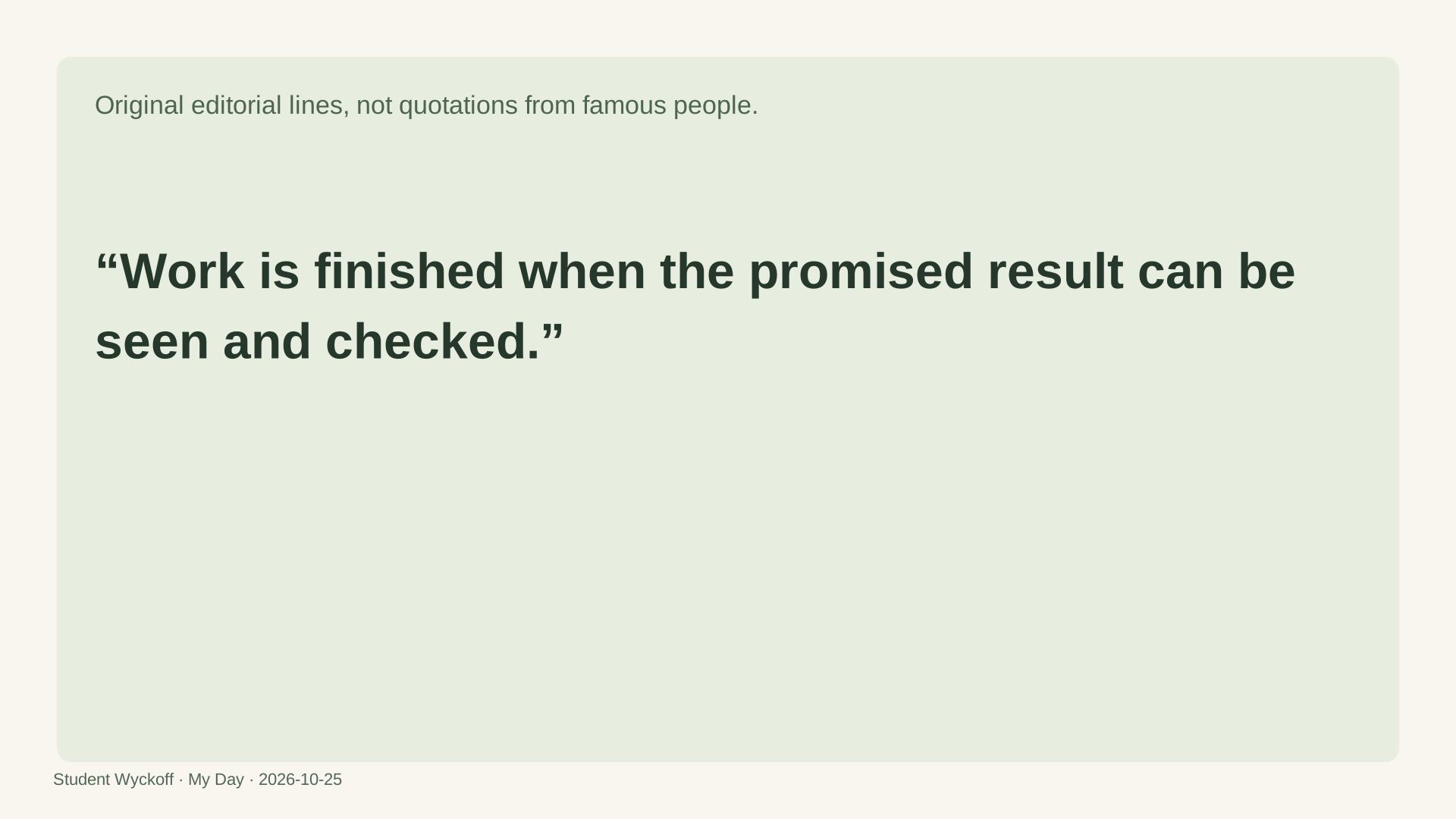
Original editorial lines, not quotations from famous people.
“Work is finished when the promised result can be seen and checked.”
“I fix what obstructs the result and stop when the agreed criterion is met.”
“When a goal no longer serves a purpose, I record why and deliberately close it rather than postpone it forever.”
Download the worksheet · Original lines about finishing work (SVG)
Import an action plan into Smartsheet
This is our CSV action-plan worksheet, not a native template supplied by Smartsheet. Download the table from the action-plan section above, remove the example rows and enter your own action, owner, due date and result. It is a plain data file without formulas or automation. The blank five-column CSV in this section is the import file.
In Smartsheet choose +Create, Import, and the Excel/CSV source. Select the saved file, give the new sheet a name and choose the task/action column as the primary column. Check date column types and a test row after import. Import into a new sheet first: importing into an existing sheet can overwrite its data. Account permissions and plan availability follow Smartsheet’s current rules, not the diary subscription.
Do not assume copied formulas or reminders will work. Add dependencies, sharing and notifications only after checking the imported rows. A source CSV export does not connect the browser planner or Windows diary to Smartsheet.
| Action | Owner | Due date | Status | Result |
|---|---|---|---|---|
Questions and answers
How can I tell whether the goal is broken down enough?
Each action can begin without another round of global planning, and finishing it produces something identifiable. A broad area name is not yet an actionable task.
What if a project keeps being postponed?
Check its purpose, the true next action, dependencies and available time. Reducing or stopping the project may be more appropriate than choosing another date.
Keep actions and reviews in My Day
In the Windows application, keep the overall result in a project or note and put the next action in your daily plan. A focus session can protect time, but it does not judge the quality of a report. During review, record facts and decisions instead of treating the number of check marks as proof of project success.
- Add a specific action with an expected output.
- Save the work and explain any deviation.
- Update the next action and waiting items each week.
Explore My Day for Windows ↗ · Full instructions for this action ↗