Check an icon at its intended small size
A large view can hide the loss of a useful detail.
Check the icon in its intended setting and size. An enlarged view helps editing but cannot replace the target-size test. Define the conditions for your specific project.
What to do
- Record the intended dimensions and the feature that should make the shape recognisable.
- View the icon at that size and name the missing detail instead of writing only “looks bad.”
- Change the relevant shape in an external editor and compare the result under the same viewing conditions.
Example
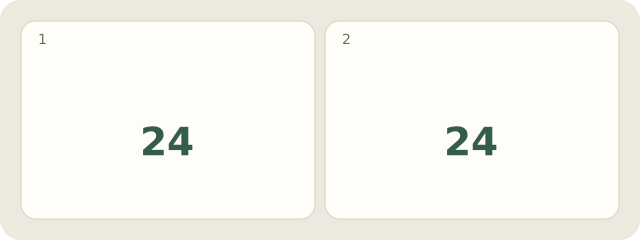
Fictional example: a cup icon is needed at 24×24 pixels. Its handle opening disappears in the test. After simplifying the outline, the opening is visible on rechecking. Record: “Checked at intended size,” without claiming universal recognition.
My Day · Windows
My Day can store dimensions, observations and the test result. You edit the icon in another application.